


Project
This tab contains mainly settings related to saving projects.
Default project location
This section allows to specify the folder where new projects will be saved. The folder can be selected by clicking the " " button to the right of the address bar.
In addition to the folder, it is possible to select how projects will be sorted. The following options are available:
- Monthly - in the default folder, a subfolder with the year of creation is created first, followed by a subfolder with the month number. Projects are placed in this subfolder
- Annually - subfolders are created in the default folder according to the year of creation, projects are placed in these subfolders
- Do not sort - projects are placed directly in the selected default folder, the program does not create any subfolders
Project description mode
In this section, you can complete the project name (and project folder name) with automatically generated information. The following options are available:
Insert project identifier |
|
Insert date of creation |
|
Always perform the action when starting the program
With this setting, it is possible to choose how the program should behave when it starts. The following options are available:
- Show starting dialog - starts a dialog box where you can choose the next procedure (start a new project, open an existing one, etc.)
- Open an existing project - starts the "Open" dialog box to select an existing job
- Open last used project - opens automatically the project that was closed last
- Do not perform any action - opens a blank program window
Autosave
For the "Truss 3D" program it is possible to switch on automatic saving and also the interval at which the saving should be done.
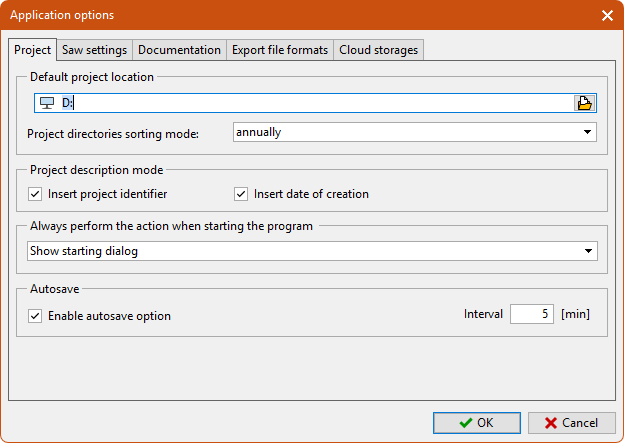 "Project" tab